User guide
Your music.Your remote. You're set.
Start with your computer, connect your phone, and take control from wherever you're comfortable. We'll walk you through it.
Windows & macOS · Android & iPhone
Have your computer and phone nearby for the first connection. Run RemoTune on both and connect them to the same Wi-Fi or local network. A computer connected to the router by Ethernet works too. You can get started without an account.
Install on both devices
Your computer plays the media. Your phone is the remote; audio still comes from your computer.
Windows
Download the Windows installer (.exe), open it, and follow the setup steps. Launch RemoTune. To open settings later, find its icon in the taskbar notification area (you may need the hidden-icons arrow), right-click it, and choose Open Settings.
macOS
Download the DMG for your Mac: Apple Silicon for an M-series Mac, or Intel for an Intel Mac. If unsure, check Apple menu → About This Mac. Open the DMG, drag RemoTune to Applications, and launch it from Applications. Use the RemoTune icon in the menu bar at the top of the screen to open settings.
On your phone
Use the Android or iPhone link in Downloads, then open RemoTune. On iPhone, allow Local Network access if prompted. Allow camera access when you choose to scan a QR code.
Downloads lists the available installers and app-store links. The steps below apply once you have the app installed.
Get your computer ready
Open RemoTune settings on your Windows PC or Mac. Most people can leave the defaults as they are.
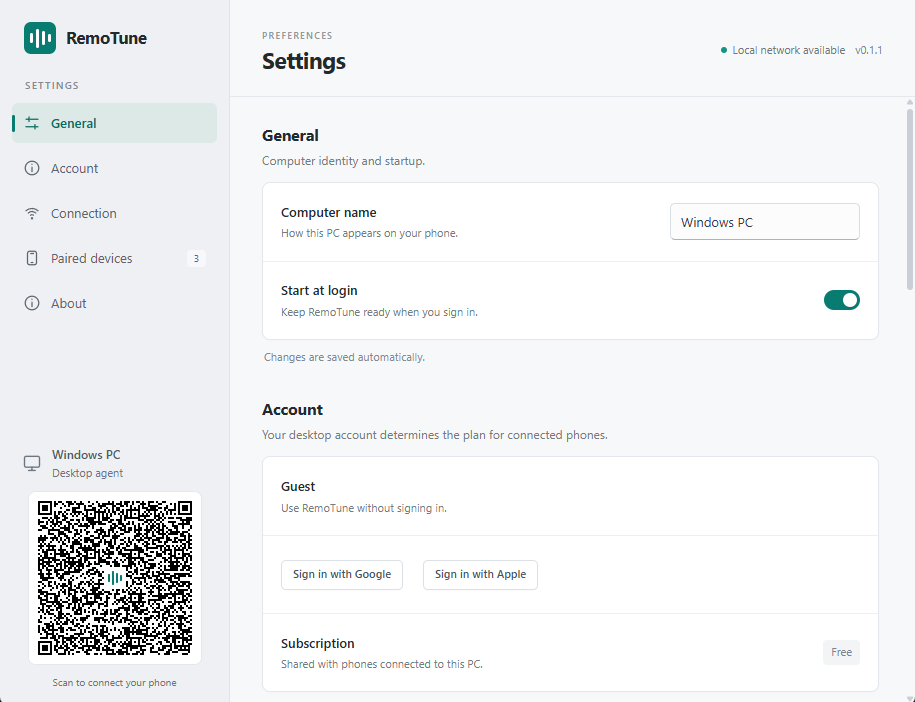
Give it a familiar name
In General → Computer name, use a name you'll recognize on your phone, such as Living room Mac. Changes save automatically.
Keep it ready
Turn on Start at login to start RemoTune when you sign in to your computer. Closing the settings window keeps it running. Choosing Quit from the tray or menu-bar icon stops it.
Signing in is optional
Guest mode lets you get started without an account. Account shows the computer's subscription; connected phones use that same plan.
Screenshots show the English app. Settings and connection steps are shared by Windows and Mac; the window appearance may differ. Images and QR codes here are examples.
Connect your phone
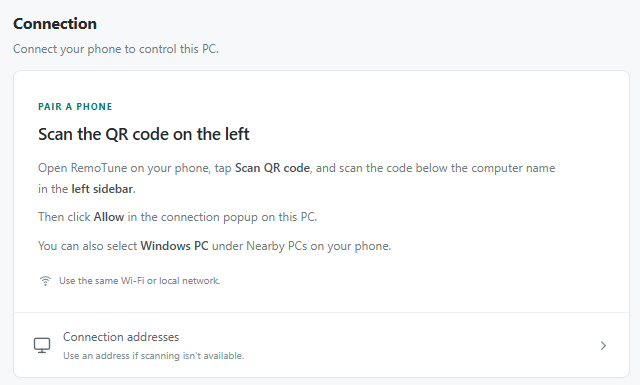
Scanning the QR code is an easy way to make your first connection. Keep the computer's settings window open.
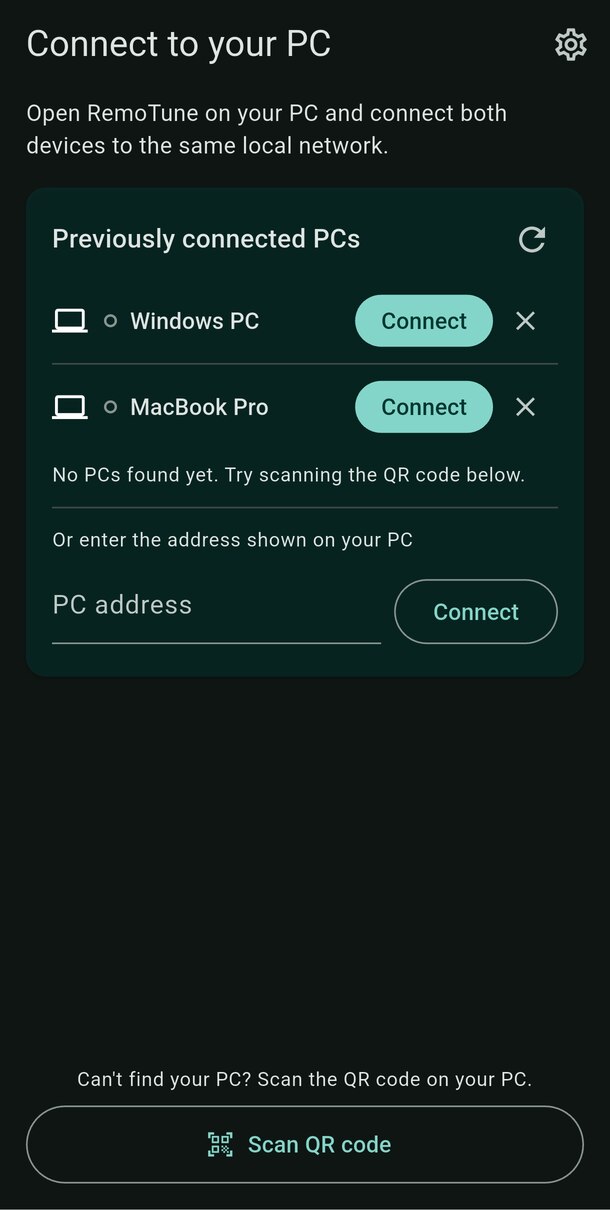
Tap Scan QR code on your phone
Find it at the bottom of Connect to your PC. Allow camera access, then point the camera at the QR code in your computer's RemoTune sidebar.
Click Allow on your computer
A connection request appears on your computer. Check that it's your phone, then click Allow. No PIN or account is needed.
Wait for Connected
Your phone opens the remote after approval. Play something on your computer to see its title, artwork, and available controls.
Scan the QR code shown by RemoTune on your own computer, not the example in this guide. QR scanning still requires both devices to be on the same local network.
Two other ways to connect
Choose a discovered computer
If your computer appears in the list, tap Connect next to its name. For a first connection, click Allow on the computer when asked.
Enter the computer's address
On the computer, open Connection → Connection addresses. Type a displayed address, including its port (for example, 192.168.1.10:3737), into PC address on your phone and tap Connect. Use your own computer's address, not this example.
You're connected. Next time, RemoTune tries your most recently connected computer automatically. An approved phone can reconnect without another approval unless you remove it on the computer.
Make yourself comfortable
Play music or a video on your computer first. RemoTune shows the active media session; it doesn't stream the audio to your phone.
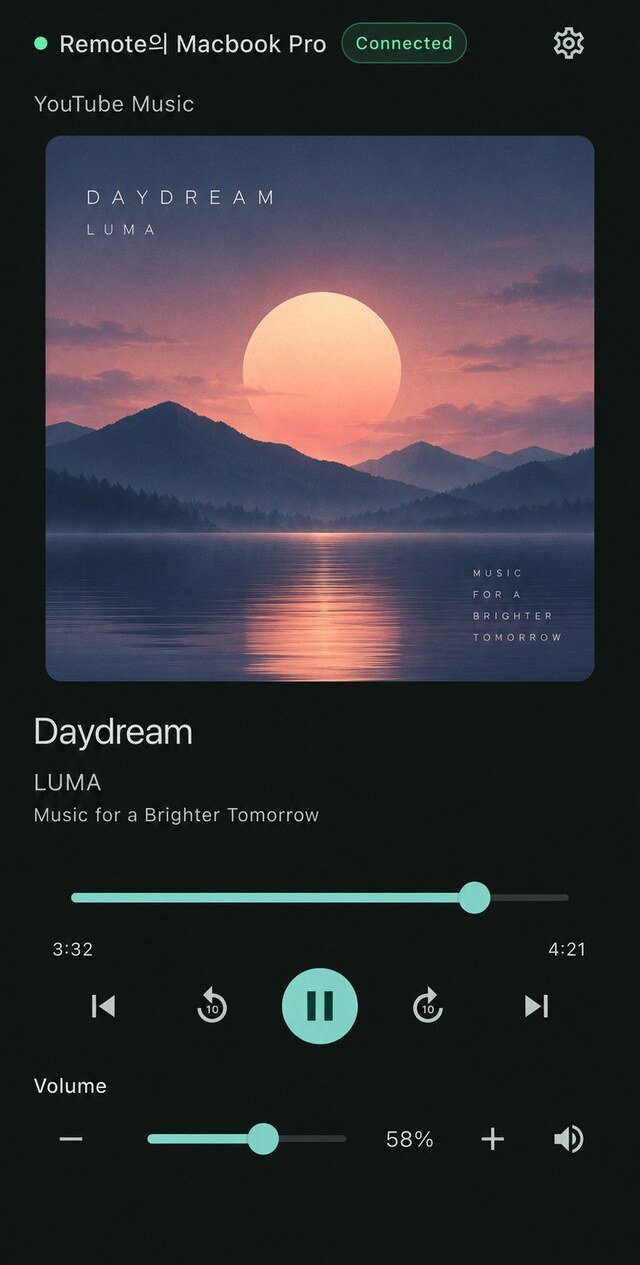
Play, pause, and skip
Use the center button to play or pause and the previous/next buttons to change tracks. You can also tap the artwork once to play or pause.
Find your place
Drag the playback progress slider to seek. The circular 10-second buttons jump back or forward. Double-tap the left or right half of the artwork for the same shortcut.
Change the computer's volume
Under Volume, drag the slider or tap − / +. Tap the speaker to mute or unmute. This changes the computer's overall output volume, not just the music app.
Shuffle and repeat
When supported, the shuffle and repeat buttons appear next to the progress slider. Repeat cycles through off, all, and one. The buttons may be hidden or unavailable depending on the player and operating system.
On Android, the phone's volume buttons also adjust computer volume while the connected remote is open. On iPhone, use the on-screen Volume slider; the physical buttons keep their normal iPhone behavior.
Switch computers & manage settings
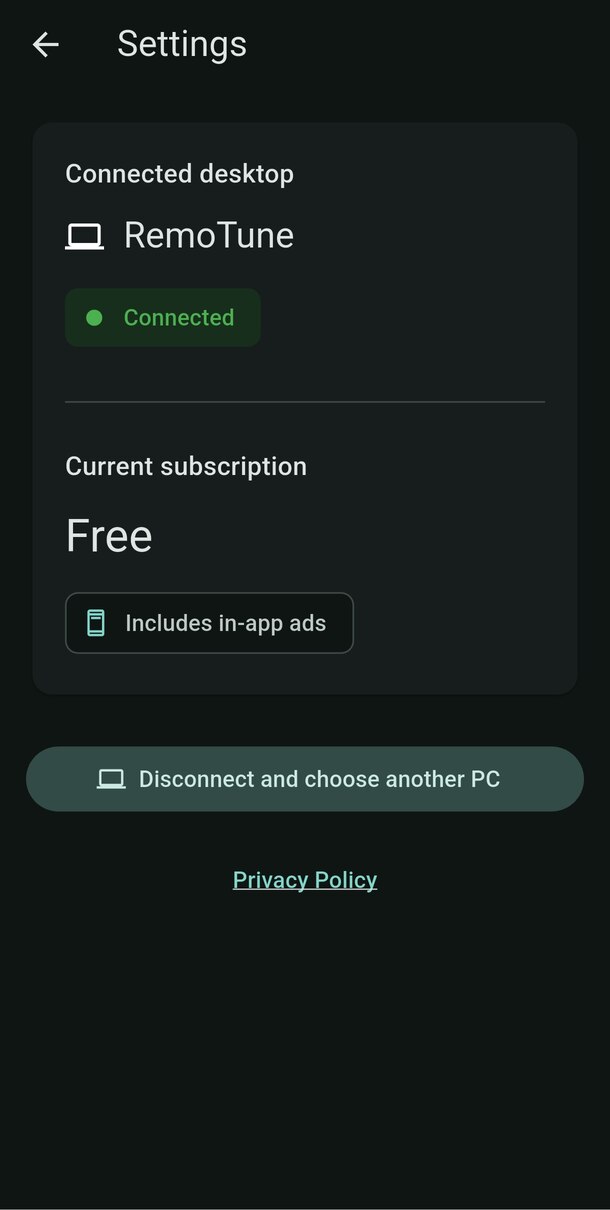
Your phone's settings are behind the gear icon. Computer access is managed in the desktop app.
Switch to another computer
On your phone, open Settings → Disconnect and choose another PC. Tap Connect beside a saved computer, or connect a new one. Up to five computers are remembered; adding a sixth replaces the least recently used record.
Check your connection and plan
Settings shows the connected computer and Current subscription. The plan comes from that computer's account. To check the account, open Account on the computer.
Remove a phone's access
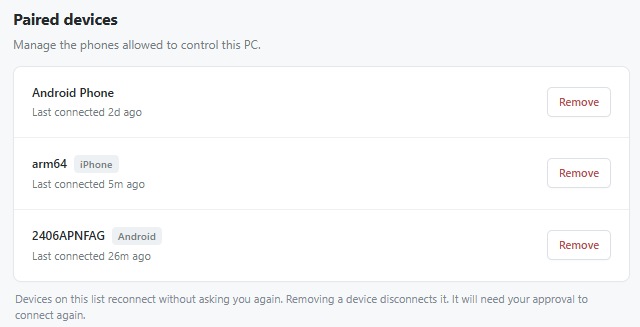
On the computer, open Paired devices and click Remove beside the phone. This disconnects it and it will need approval again. Removing a saved PC with × on your phone only removes that phone's saved connection entry.
Open About → Check for Updates. Updates are also checked in the background. If Restart & Update appears, choose it when you're ready; the new version starts after the app restarts, and your phone may briefly reconnect.
Need a hand?
Start with these quick checks. You usually don't need to pair again.
My computer doesn't appear
Make sure RemoTune is running on the computer and both devices are on the same local network. Guest Wi-Fi may isolate devices, and a VPN may affect discovery or access. Try Scan QR code or Connection addresses. On Windows, allow RemoTune through the firewall for your trusted private network.
My iPhone can't find the computer
In iPhone Settings → Privacy & Security → Local Network, enable RemoTune. Return to the app and search again. If scanning is unavailable, allow Camera access for RemoTune in Settings, or connect by address.
I scanned the code but I'm still waiting
Check the computer for the connection request and click Allow. If another phone is waiting for approval, yours may be queued. If the request expires, try connecting again from your phone.
The connection dropped
Wake the computer and check both devices' network connections. RemoTune reconnects automatically. If Couldn't reach… appears, tap Try again, or choose Connection options to select a computer or scan again.
No track appears, or a control doesn't work
Start playback on the computer in a supported media app or browser. Some players don't provide artwork, duration, seeking, or other controls. On Mac, only the current Now Playing session is shown; some players may ignore unsupported commands.
The volume won't change on my Mac
Some HDMI, AirPlay, or external audio devices don't expose software volume control. Use the output device's own volume controls, or select an output that supports software volume.
Can I connect when I'm away from home?
This guide covers local-network connections. Your phone and computer must share the same LAN; connecting over mobile data or a different network is not currently available.