YouTube Music is playing through your computer’s speakers, but you’ve stepped away from your desk. A track you usually skip comes on, or a call arrives and you need to pause.
Reaching for your phone should be enough.
Can you control YouTube Music on PC from your phone?
YouTube Music does not currently offer Spotify Connect-style remote control for desktop browser playback.
Its official casting options work with devices such as Chromecast, compatible TVs, and speakers. A regular PC or Mac browser does not appear as a Cast destination on your phone.
See Google’s guide to supported devices.
To control YouTube Music already playing on your computer, you can use RemoTune.
Control YouTube Music with RemoTune
RemoTune turns your phone into a remote for media playing on your Windows PC or Mac.
The music continues through your computer’s speakers or headphones. Your phone displays the current track and lets you control playback over your local network.
That means you can:
- Stay where you are: Pause, skip tracks, or adjust the volume from across the room.
- Keep your existing setup: Continue using the computer, speakers, or headphones you already have.
How to set it up
1. Install RemoTune on your PC or Mac
Download RemoTune, install it, and launch it on your computer.
On Windows, open RemoTune from the system tray. On macOS, use the menu bar icon.
Mac downloads are available for both Apple Silicon and Intel.
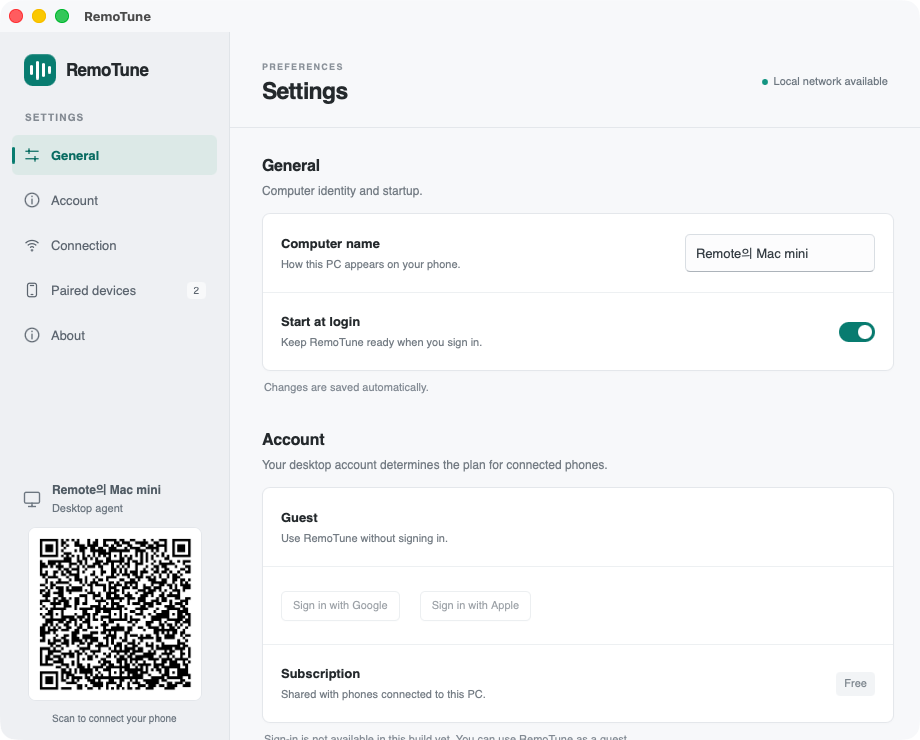
2. Connect your phone
Install the Android app using the Google Play link on the download page.
Make sure your phone and computer are on the same local network. Your computer can use Ethernet while your phone uses Wi-Fi, as long as both are connected to the same router.
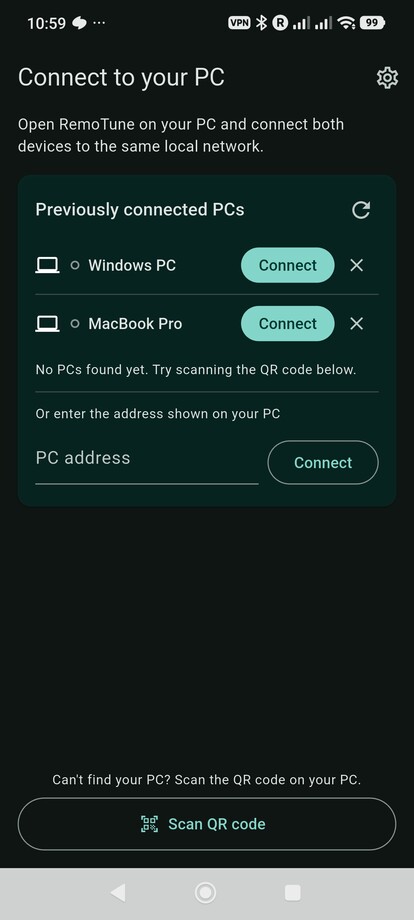
Then:
- Open RemoTune on your phone.
- Tap Connect beside your computer’s name.
- Check the connection request on your computer and click Allow.
If your computer does not appear automatically, you can also connect by QR code or by entering its address manually.
No RemoTune account is required.
The iPhone app is currently listed as Coming soon.
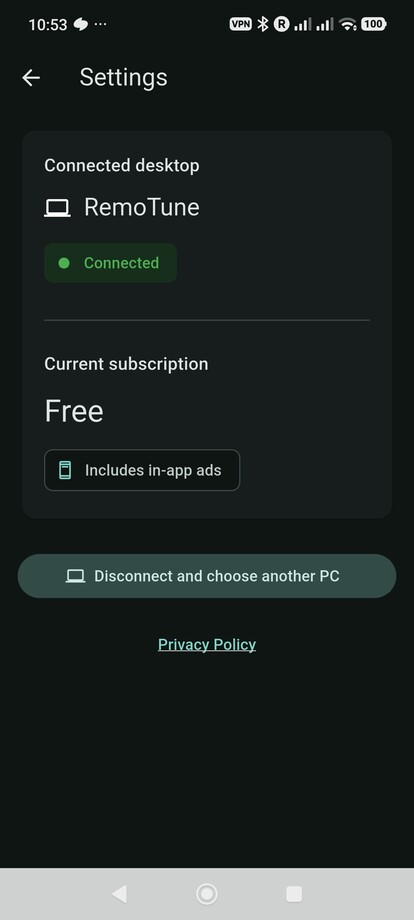
3. Start YouTube Music
Open YouTube Music in your desktop browser and play a track or playlist as usual.
The current track title, artist, and album artwork appear in RemoTune on your phone.
4. Control it from your phone
Use the playback controls to pause, resume, or skip tracks.
Drag the progress slider to seek within the track, and use the Volume slider to adjust your computer’s output.
On Android, your phone’s physical volume buttons also control the computer’s volume while the connected remote is open.
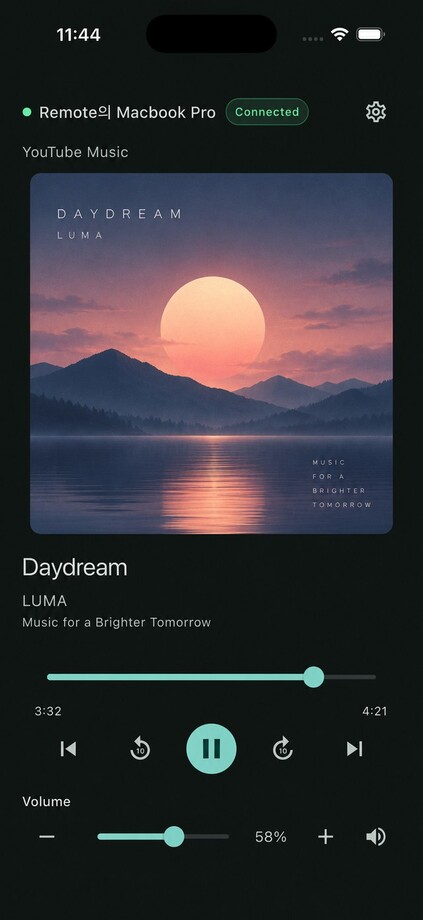
What can you control?
| Feature or platform | RemoTune |
|---|---|
| Play / Pause | ✅ |
| Previous / Next | ✅ |
| Computer volume / Mute | ✅ |
| Track title & artist | ✅ |
| Album artwork | ✅ |
| Seek | ✅ |
| Windows | ✅ |
| macOS | ✅ Apple Silicon and Intel |
| Android | ✅ |
| iPhone | Coming soon |
Volume controls your computer’s overall output, including other apps.
RemoTune sends remote commands only. Audio stays on your computer, and you continue choosing playlists and managing your queue in YouTube Music.
Troubleshooting
If your computer doesn’t appear
You can connect manually without waiting for automatic discovery.
Connect with a QR code
Open RemoTune settings on your computer, then tap Scan QR code on your phone and scan the code shown in the desktop app.
Connect by address
In the desktop app, open Connection → Connection addresses.
Enter one of the displayed addresses, including its port, into the PC address field on your phone and tap Connect.
For a first connection, approve the phone on your computer when prompted.
Both methods still require the phone and computer to be on the same local network.
If neither works, check that RemoTune is running and that your Wi-Fi allows devices to communicate. Guest networks may block communication between devices.
See the RemoTune connection guide for more details.
If Mac volume doesn’t change
Some HDMI, AirPlay, and external audio outputs do not support software volume control.
Use the output device’s own volume controls, or select an output that supports software volume adjustment.
This limitation affects volume control only; playback controls can still work.
See RemoTune’s troubleshooting guide for more help.
More than YouTube Music
RemoTune isn’t limited to YouTube Music.
It can also control other compatible music apps and browser media on Windows and macOS.
If you switch players, you can keep using the same phone remote. Available controls depend on the app and playback session.
Get started
Install RemoTune on your PC or Mac, connect your Android phone, and start YouTube Music as usual.
Then control your music from the couch, the bed, or anywhere away from your PC or Mac.